Victor Olaya has developed another framework for integrating various libraries and tools into QGIS. It is based on the SEXTANTE platform, which includes a toolbox, a graphical modeler and a script creator. It also provides a batch processing interface, command history, and some other features. The platform currently supports SAGA, GRASS, and R algorithms, as well as tools from the fTools and mmqgis plugins. According to the author, it is quite easy to add new algorithms and new providers.
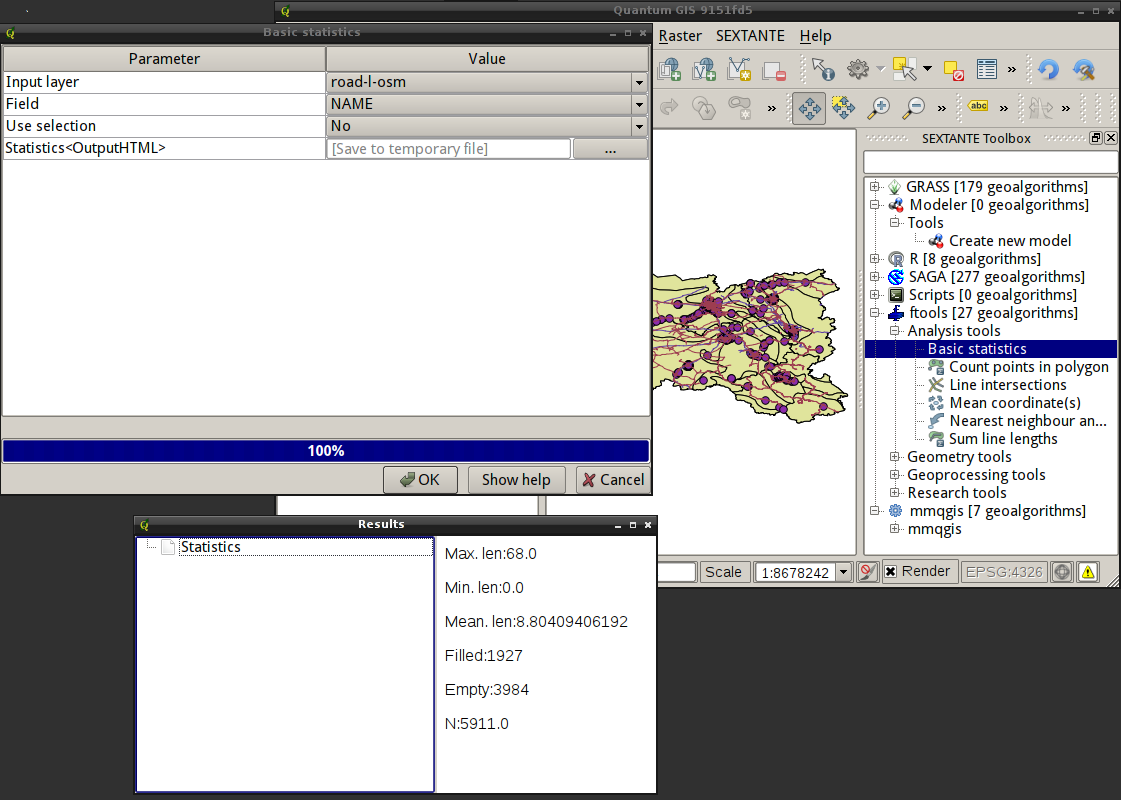
I haven’t had a chance to test it properly yet, but it looks interesting and promising. The screenshot shows the list of tools, the GUI of the Basic Statistics tool from fTools and the result it produced.
SEXTANTE plugin in QGIS
Please note that this is still a work in progress, so regular users are better off waiting for the official release rather than using code from SVN.
In the post “Getting started with openModeller” I showed how to use openModeller Desktop to identify areas at risk from invasive species. Another task that can be done with openModeller is modelling the distribution of species under new climate conditions.
Not long ago, people on the forum were looking for a way to consolidate the QGIS project and related layers into one place. As no such tool existed, the discussion quickly turned into a thread full of wishes and feature requests. A little later, I was faced with the same task. Fortunately, in my case, the project only had vector layers in Shapefile format, so I quickly developed a simple and somewhat suboptimal plugin.
Now that I have more free time, I am slowly improving the plugin. I have already implemented:
support of file-based vector datasources
support for native database providers (PostgreSQL, SpatiaLite, SQLAnywhere)
layer processing has been moved to a separate thread, and the tool no longer blocks the main QGIS window
initial support for GDAL rasters
On the TODO list:
support for all vector data providers
finalise support for raster layers
provide the user with a choice of vector data format (Shapefiles or SpatiaLite database)
In the post about openModeller command-line tools, I have mentioned request files several times. When using openModeller from the command line, we have to deal with these files very often, as they allow us to perform almost all necessary actions and go from the input data to the results.
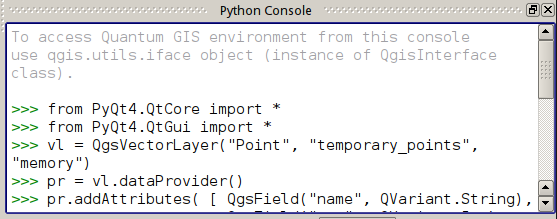
Most QGIS users are probably aware of the Python Console, even if they rarely use it. It is a window (accessible from the “Plugins → Python Console” menu) where you can interactively enter commands and access QGIS API functions.
QGIS Python Console
The Console is an extremely useful tool and comes to the rescue in many scenarios, from prototyping plugins to automating repetitive actions.
Obviously, typing commands every time you need to perform some task is inconvenient, so frequently executed code is transformed into scripts, and these scripts are then run from the Console. However, if the number of actively used scripts is large enough, using the console becomes a bit inconvenient. The Script Runner plugin by Gary Sherman was developed to solve this problem. The plugin is available from the official repository, has no dependencies, and can be found in the “Plugins” menu after installation.
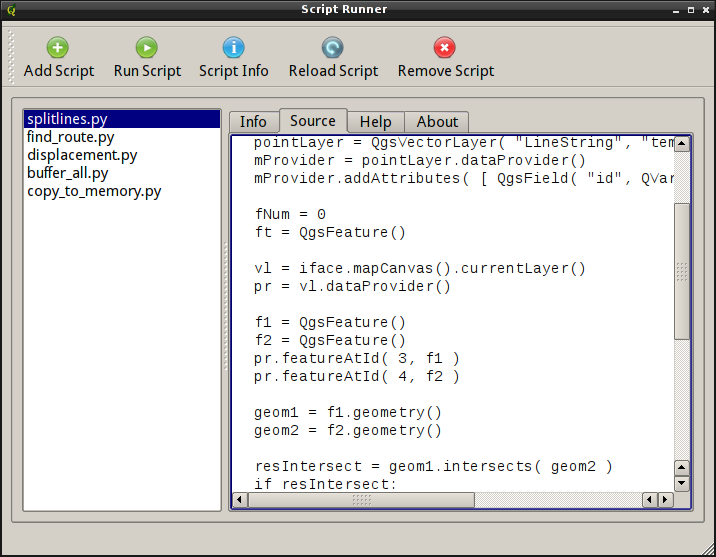
The plugin’s interface is simple: a toolbar with large buttons, a list of scripts on the left, and four tabs — “Info”, “Source”, “Help” and “About” — on the right.
Script Runner plugin
The “Add Script” and “Run script” buttons are self-explanatory: the first one adds a script to the list (the list is saved between sessions), the second one runs the selected script.
Clicking the “Script Info” button will populate the “Info” tab with docstrings, function and class names from the selected script, and the script code will be loaded into the “Source” tab in read-only mode.
I think the purpose of the last two buttons, “Reload Script” and “Remove Script” is clear from their names. The first reloads the script (useful for debugging or if you need to tweak the code and run the process again), and the second removes the script from the list (leaving the file on disk).
Script Runner has only one requirement for scripts: they must have an entry point. The entry point is simply a run_script function that takes only one argument, a reference to the qgis.utils.iface object. If such a function is not present in the code, the script will simply not be recognised and loaded by the plugin.
The script logic can be implemented either within the run_script function or in separate functions called from it. It is also possible to use an OOP approach. In this case, you need to create an instance of the class in run_script and call the necessary method(s).
Here is a simple example (the script creates an empty LineString memory layer):
Last year I wrote “Getting started with openModeller” post which gave an overview of openModeller - a free open-source ecological niche modelling tool - and showed how to run experiments in the openModeller desktop GUI. However, it is often faster and easier to perform the necessary actions using command-line tools. This is the subject of this post.
With the release of QGIS 1.7.0 it was announced that a new official plugin repository has been created with many features (a rating system, lists of recommended and recently added plugins, etc.). In addition, a dedicated section for 3rd-party plugins has been created in the QGIS bug tracker, where plugin authors can create a homepage, wiki, bug tracker, and code repository for their plugins. The main goal of all this is to provide a single repository for plugins and a single place to report bugs for both plugins and QGIS itself.
And although the new repository has been put into production and added as the default repository in the QGIS 1.9.90, plugin developers are still holding back on using it (at the time of writing, there are only 35 plugins in the new repository, for comparison, there are 111 plugins in the old repository). This can probably be explained partly by ignorance and partly by the somewhat confusing procedure for adding a plugin to the new repository.
Let’s try to figure this out.
I assume that the plugin code has been published to one of the public code repositories, such as GitHub or BitBucket, and now we want to set up a bug tracker and wiki on hub.qgis.org. This will make life a bit easier for users: they will be able to use their existing account to file bug reports. To do this:
go to hub.qgis.org and log in
open the “Projects” section and click on the “New Project” button, or go to the “User Plugins” subsection and click on the “New Subproject” button
fill in the form (note that in the “Subproject of” list you should select “User plugins”): enter the name of the plugin, a short description, and a link to its homepage (if available). Here, you can also select the necessary components of the bug tracker (wiki, tracker itself, calendar…). Most settings can be changed later
once you have completed the form, click on the ‘Save’ button. That’s it, a new project has been created
The bug tracker and code repository are ready. All we need to do now is upload the plugin to the plugins repository.
Before creating an archive and uploading it to the server, we need to fill in the metadata in the plugin’s metadata.txt file, specifying the URLs of the bugtracker, repository and homepage (more details). Here’s an example:
[general]name=Cool Plugindescription=Does some useful actions with your datacategory=Vectorversion=1.0.0qgisMinimumVersion=1.7.2icon=icons/pluginicon.pngauthorName=usernametags=vector, bounding box, bufferexperimental=Truedeprecated=Falsehomepage=http://someserver.com/coolplugin.htmltracker=http://hub.qgis.org/projects/coolpluginrepository=http://github.com/username/coolplugin
Save the changes in the metadata.txt file and create an archive with the plugin. Now we are ready to upload the plugin to the new repository:
use the “Share a plugin” link in the sidebar to open the upload form
select the plugin archive, activate the “Experimental” checkbox if necessary, and click “Upload”
If the plugin is packaged correctly and the metadata contains no errors, the archive will be uploaded to the server. Otherwise, an error message is displayed, and the upload is cancelled. Once the errors have been corrected, the upload should be repeated.
The uploaded plugin gets an unapproved status and is not immediately available to all users. It will only be added to the list of publicly available plugins after approval from the administrator. This will happen every time you upload a new version, even if your plugin has already been approved. This policy may be changed in the future.
There is also a small script to upload the plugin archive to the server. For example, you can add it to the post-commit hook or Makefile and upload new versions without a browser.
As you can see, there is nothing complicated about using the new infrastructure.
In general, the proposed changes were well received and sparked another wave of discussion about the plugin situation. At the same time, the main drawback of the proposed approach was pointed out — now, after activating a plugin, it is not known in which menu it will appear. To solve this problem, the Plugin Manager had to be modified, and another tag had to be added to the plugin metadata.
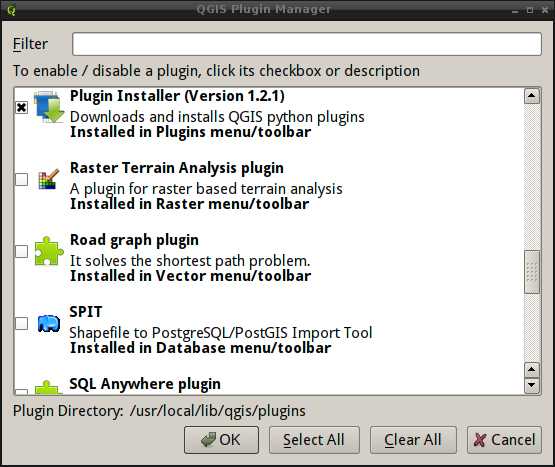
The new category metadata is for informational purposes only and should contain the name of the menu where the plugin will be placed after activation. This information is displayed in the Plugin Manager.
Category metadata in the Plugin Manager
If there is no category metadata, the default value “Plugins” is used.
Oh, and one more thing. Plugins written in C++ need to be recompiled. It is a small API break.
It is still the responsibility of the plugin developer to place the plugin in the correct menu, and there are many API calls available for this purpose. These methods can be used to add the plugin to any menu or toolbar.
What’s this all about? Well, about 20 minutes ago, it stopped being an experimental branch and was merged into master. So if you don’t find “Add Delimited Text Layer” in the “Plugins” toolbar tomorrow, don’t say you weren’t warned :-).
I am not going to discover America by saying that the number of different plugins for QGIS is constantly growing (190 at the time of writing) and it is difficult to navigate the “Plugins” menu with a dozen or two active plugins. This issue has been raised many times at hackfests, starting with the Vienna meeting, and on the mailing lists.
Periodically, new tickets were filled: #1602, #1734, #4069. One of the results was moving fTools to the “Vector” menu (the menu is created by the module itself), soon the “native” “Raster” menu was added, and a bit later — the “Database” menu (it appears when the first plugin belonging to this menu is activated). But the vast majority of plugins, including core plugins, continued to huddle together in the “Plugins” menu and place their buttons on the corresponding toolbar.
Meanwhile, in ticket #4395, Paolo again raised the question of moving at least the core plugins into the appropriate menus. This is where it all started.
Firstly, the Offline Editing and SPIT plugins have been moved to the “Database” menu. The “Oracle GeoRaster” and “SQLAnywhere” plugins lost their menu items altogether, and their buttons were moved to the “Layers” toolbar and duplicated in the “Layers” menu. After a brief discussion with Paolo, the “repression” continued:
raster plugins have been moved to the “Raster” menu and toolbar
a “native” “Vector” menu and toolbar have been created for plugins that work with vector data. fTools and a few other core plugins have been moved there
the “Add Delimited Text Layer” plugin has been moved to the “Layers” toolbar
the “GPS Tools” have been split: one button has been moved to the “Layers” toolbar and the other to the “Vector” menu
the “Database” toolbar has been created, and the “Offline Editing” and “SPIT” plugin buttons have been moved there
new methods have been added to allow plugin developers to place their plugins in the desired location
Some plugins have not been moved anywhere yet:
eVis (“Database”?)
OpenStreetMap (a new category “Web” is proposed)
MapServer Export (a new category “Web” is proposed)
RoadGraph (probably “Vector”)
GRASS
Coordinate Capture
Diagram Overlay
So far, all this exists as a reorganise-plugins branch in my fork. The question of merging it has been raised on the mailing list. The main disadvantage (relative in my opinion) - when activating the plugin, the user will not know where exactly, in which of the 4 menus it (the plugin) will appear. One solution is to add a tag to the plugin’s metadata that specifies which section the plugin will be placed in after installation.